


Bug reporting takes time. Here’s how AI helps teams work more efficiently
Key Takeaways:
It’s a sinking feeling when a new app release, meant to improve your product, actually breaks the entire service.
You quickly realize you need to roll back that deployment to minimize damage.
This article is for anyone who has been there and is looking for the best practices to quickly and safely return their app to a stable version.
We’ll outline five essential practices for turning a panic-inducing failure into a manageable, temporary setback.
Table of Contents
The single best way to make your rollbacks safer and faster is to automate the process.
Unfortunately, many still handle rollbacks manually, which can be a very slow and confusing process, especially when things are already going wrong.
For example, look at this Stack Overflow thread where a user asked how they can manually roll back their app.
One commenter said it’s as easy as following the upgrade procedure: just redeploying the previous app version.
But, as the image below shows, it’s often easier said than done.
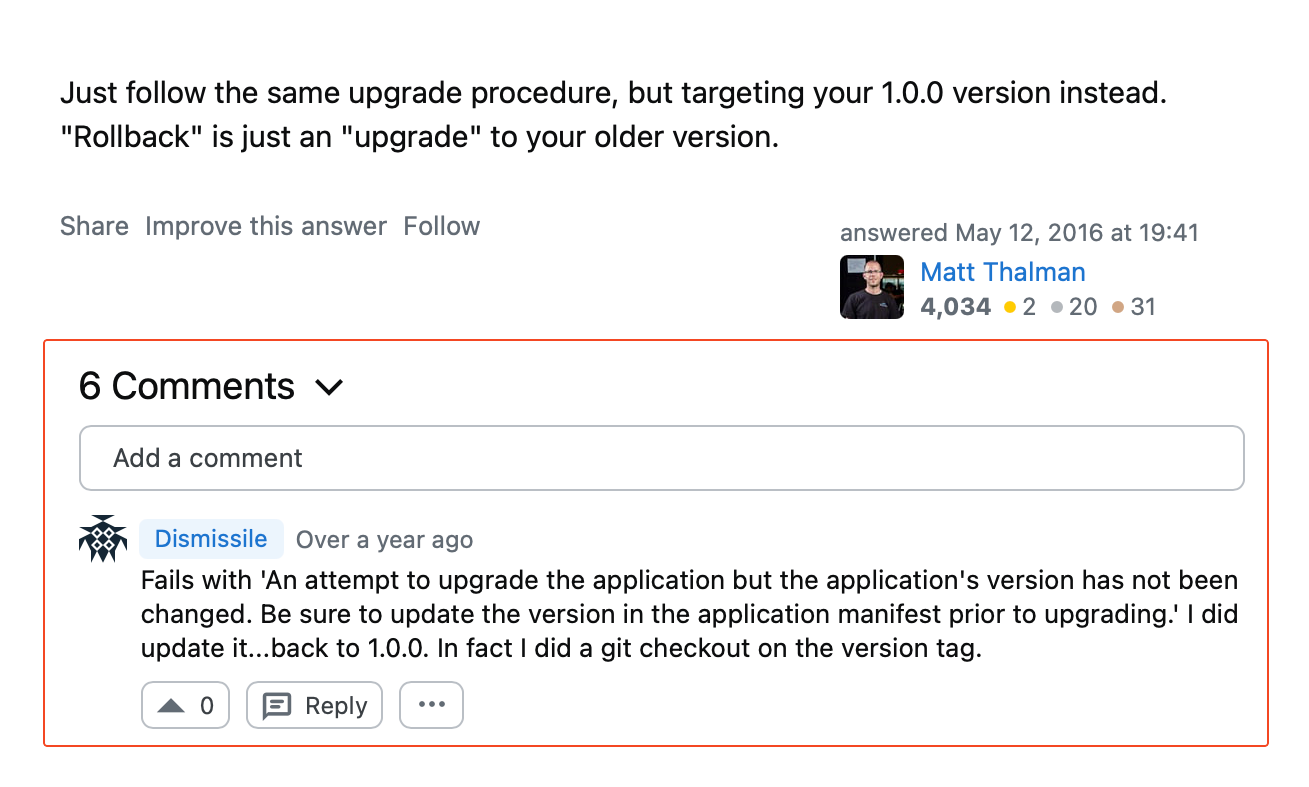
Manually running database reverses or configuration changes often leads to missed steps or incorrect sequencing.
Now, imagine trying to fix these new issues while under extreme pressure because a critical bug is affecting all your users.
This is why the best solution is to automate as much of the rollback process as possible.
For instance, one common option is to add a specific “Rollback” stage directly into your deployment pipeline.
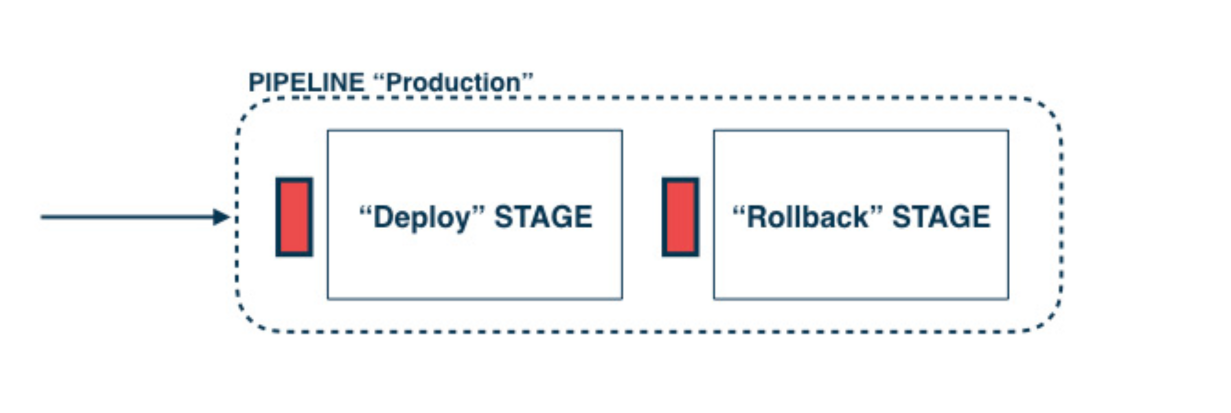
In this setup, the trigger for the rollback stage is usually manual.
This means a person, like an engineer or team lead, must look at the situation and decide to run the rollback.
However, once that person clicks the button, the rollback process itself runs completely automatically.


Get unreal data to fix real issues in your app & web.
It executes whatever rollback script or job you have defined.
This might involve redeploying the last known stable version, restoring a previous database snapshot, or switching configuration flags.
Of course, you can also take this one step further and automate more of the entire process, including the decision to roll back.
This takes just a few more steps, as outlined below.
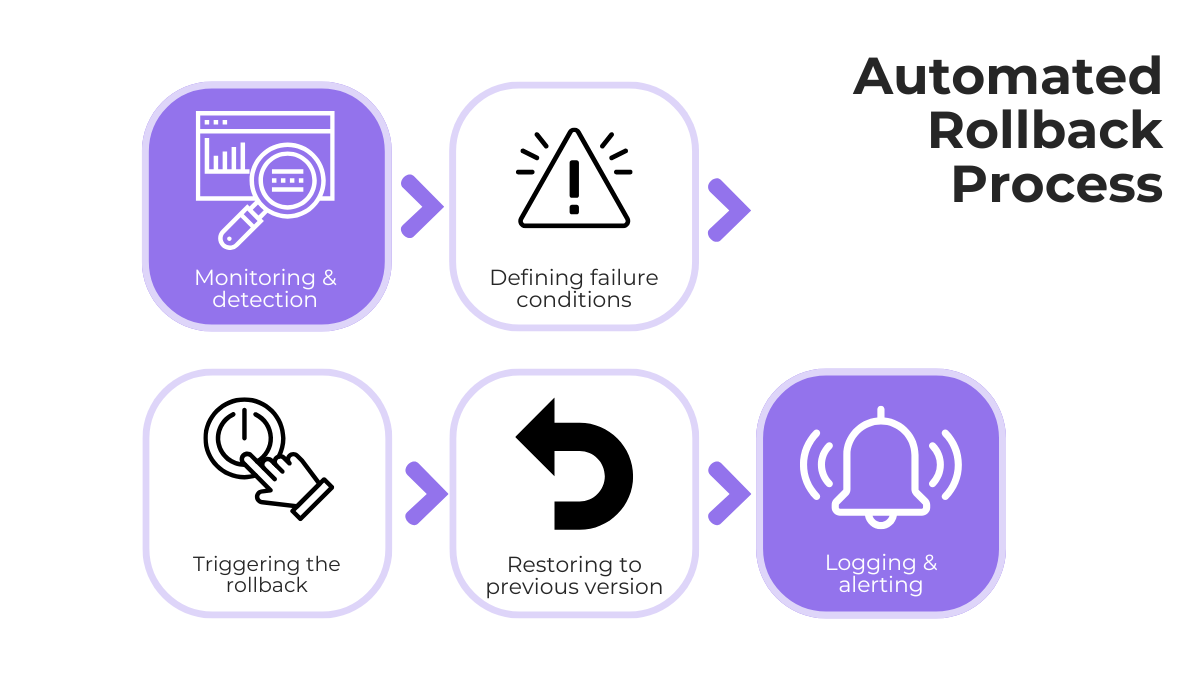
To do this, monitoring the app’s health right after deployment is essential.
You must define clear rules for what circumstances should automatically trigger the rollback.
For example, you could set a trigger if the new version’s error rate jumps 50% in the first five minutes.
When a rule is broken, the monitoring tool can send a signal to the deployment tool, and the rollback can automatically happen without any human intervention.
With this fully automated process, you also want to log every rollback and immediately alert the development or operations team.
Done right, automation removes human error from a stressful situation and ensures the rollback procedure is executed correctly every time.
A rollback on your main production app should hopefully be a rare event.
But when it does happen, it absolutely needs to be done right on the first try.
What you must avoid is a poorly defined or untested procedure.
This is something Bob Walker, a Field CTO for Octopus Deploy, learned the hard way.
He shared a story about a time when a rollback was necessary, the first one in a long time.
Walker and his team quickly saw that their rollback strategy was not even defined.
He recalls that they needed to scramble to create a new rollback plan from scratch, right in the middle of the crisis.
Even after creating this emergency plan, the team estimated that their odds of a successful rollback were only about 10%.
This situation really highlights why rollback procedures themselves must be tested.
And, just like testing new features, this testing should be done in your staging environment, not in production.
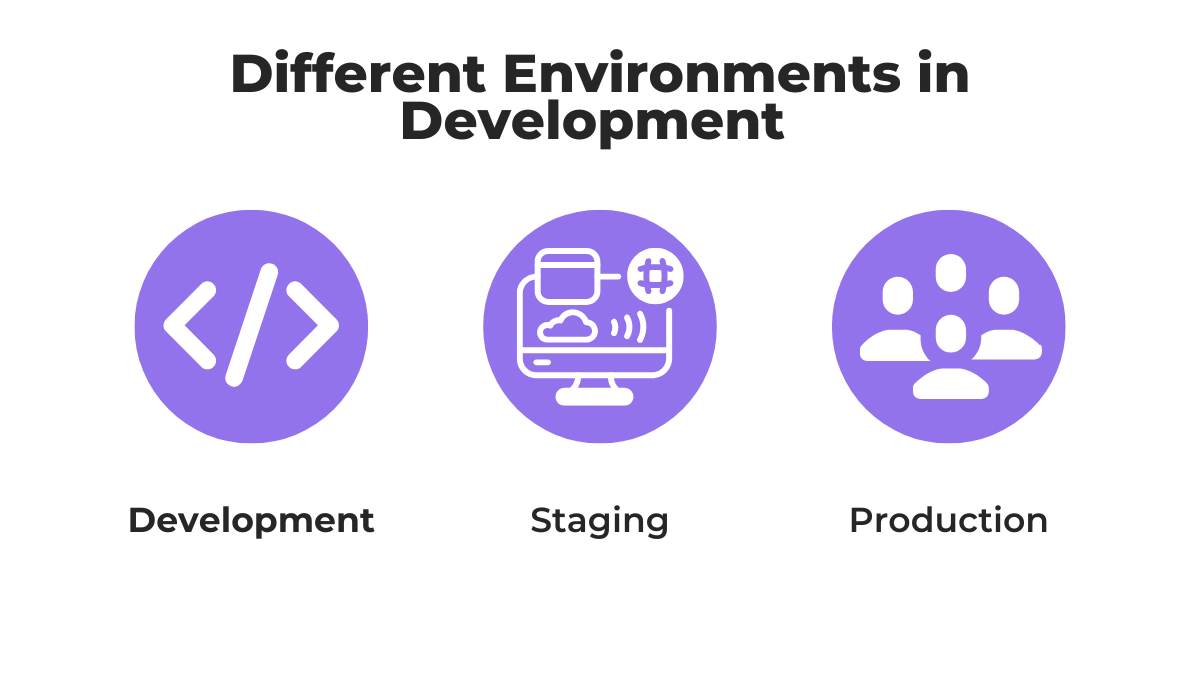
The process is straightforward: after you successfully deploy a new version to your staging environment, you then immediately practice rolling it back.
This test confirms that your automation works, that your scripts are correct, and that the application returns to a stable state as expected.
There are also some deployment techniques that can make this process much safer and easier, such as blue-green deployment.
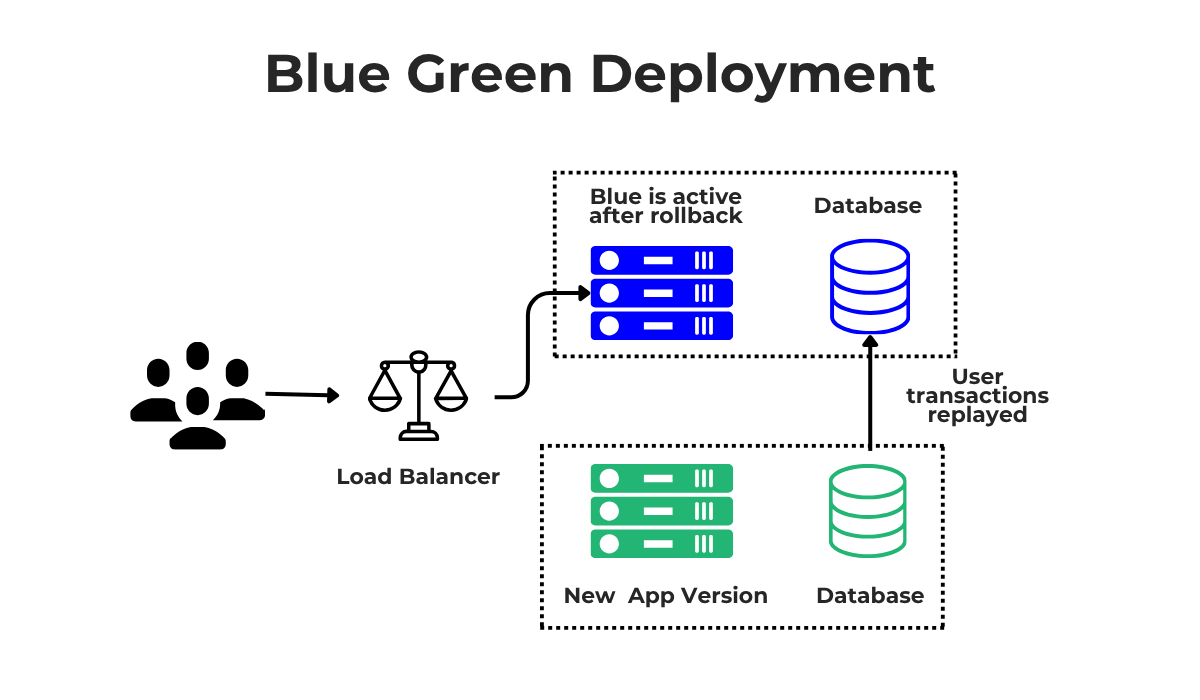
Blue-green deployment is a strategy where you run two identical production environments, which we can call “Blue” and “Green.”
If Blue is the current live version, you deploy the new version to the Green environment. Once you are confident Green is working, you switch your network traffic to it.
If you then discover a problem, rolling back is simple: you just switch the traffic right back to the stable Blue environment.
Techniques like these make the rollback instant and incredibly low-risk.
But only by regularly testing your rollback procedures in staging can you ensure that if a real emergency happens, your plan is reliable, documented, and stress-free.
It’s often quite clear when a new app release might need to be rolled back.
If nothing else, your user base will immediately notice any bugs or issues.
And even if nothing is technically “wrong,” you can expect users to react strongly to an unwanted change.
But these user reactions, while useful to point out that something needs to be done, are not usually very helpful for fixing the problem.
For instance, they can look something like the review shown below.
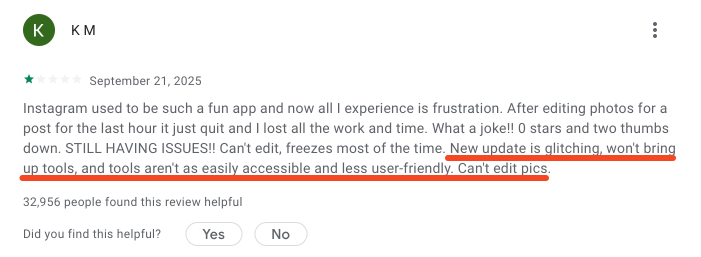
This kind of user feedback is often not useful because it’s too general and lacks the specific technical details your team needs to understand the problem.
So, it’s difficult to know exactly what went wrong or whether a rollback is actually the right decision.
You often have to wait until some time passes and more users complain, or until an issue is finally detected by your internal monitoring.
That’s where a dedicated bug and crash reporting tool like Shake is useful to explore.
For starters, when a crash occurs, Shake automatically detects it and prompts the user to instantly send you feedback, all without leaving the app.
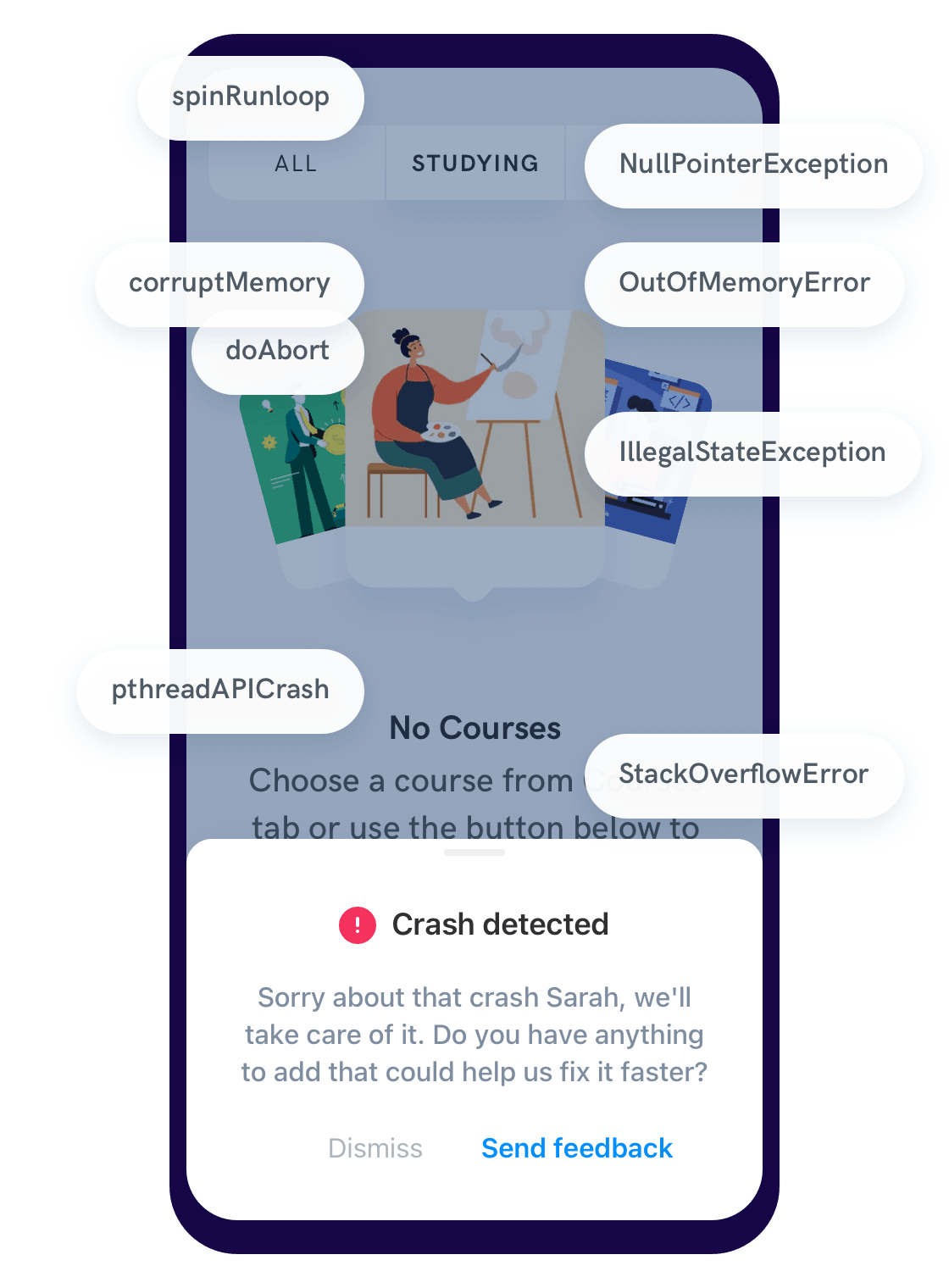
But, even when no crashes are present, users and testers can report bugs right from the app.
They can do this just by shaking their device or tapping a button the moment they see the issue.
This means that critical issues—the types of issues that deserve a rollback—get to your team much faster.
In other words, you are no longer waiting for users to get frustrated or for bad one-star reviews to pile up.
And the best part is that Shake automatically attaches over 50 data points to every bug report ticket.
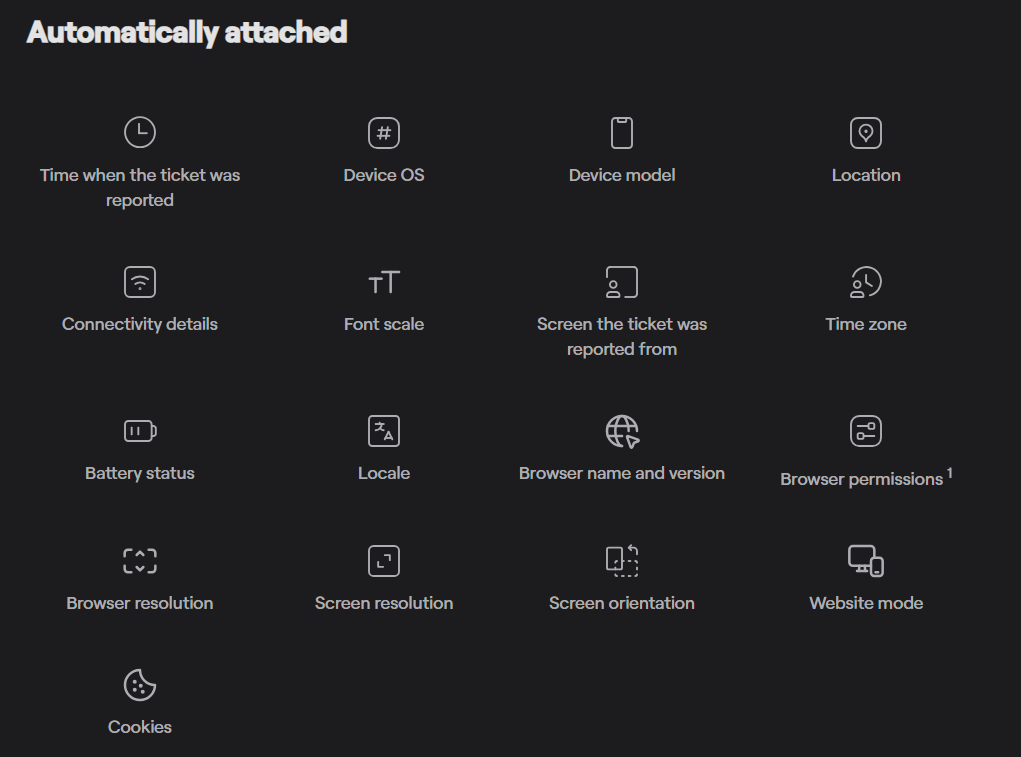
This data includes the device type, operating system, network status, and a full history of user actions leading up to the report.
This makes it much easier to see the complete context of the bugs being reported, thereby speeding up the decision-making process when determining if a rollback is necessary.
But more importantly, these tools can allow you to avoid rollbacks altogether.
The same reporting capabilities can (and should) be used during testing and in the staging environment.
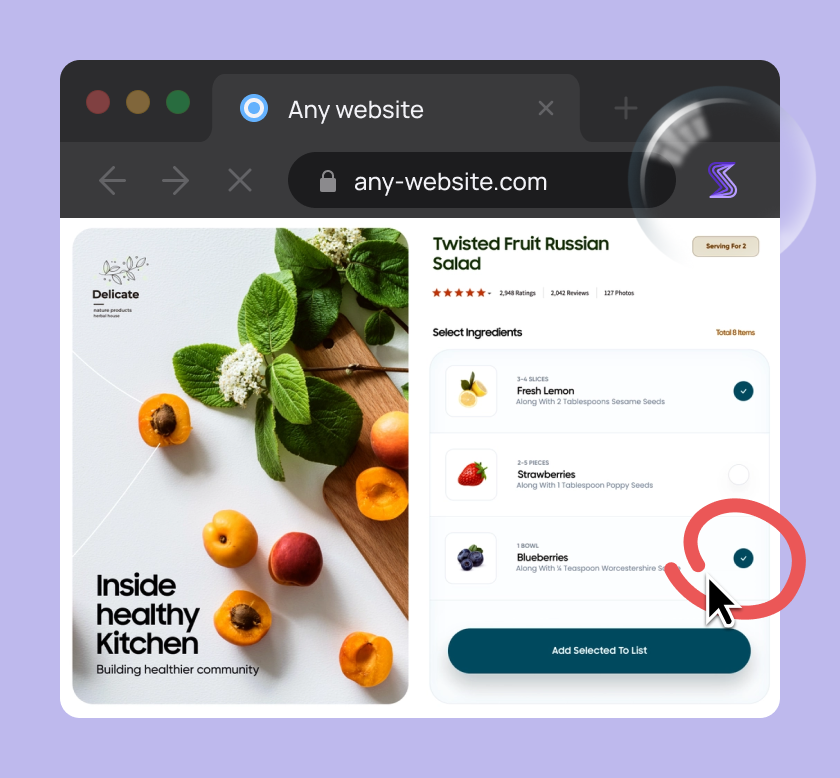

Capture, Annotate & Share in Seconds with our Free Chrome Extension!
Your QA team or beta testers can report bugs effortlessly before a new release goes live.
And, because every report comes with detailed technical data, developers can find and fix these critical issues early.
So, a bug reporting tool gives you faster, high-quality feedback, allowing you to either perform rollbacks more intelligently or, ideally, prevent the need for one in the first place.
While you are planning out your rollback strategy, one of the most essential steps you need to take is keeping proper documentation.
This is critical because it ensures everyone on the team knows exactly what to do during a high-stress failure.
A good document turns panic into a clear, step-by-step procedure.
Of course, this includes exploring the rollback processes available in your deployment platform.
If you are using established platforms, they should have clear documentation on how their rollback features work.
For example, a platform like Clouddley has detailed documentation on several of its rollback procedures.
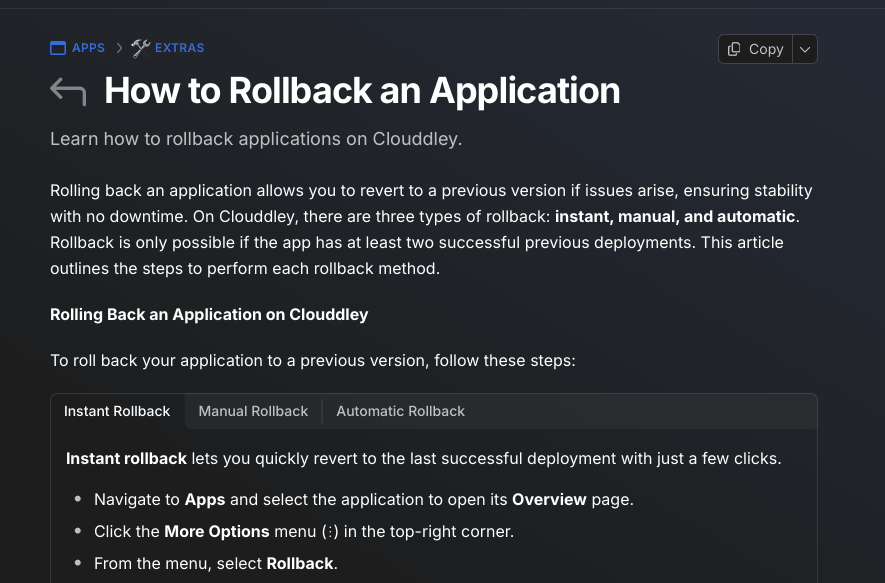
Understanding this external documentation is necessary before an emergency happens.
It helps you know what your tools can and cannot do, and more importantly, it directly impacts your internal strategy.
In fact, for your internal processes, you need to ensure you clearly define the rollback strategy you will use, including any tools and the specific scenarios for each.
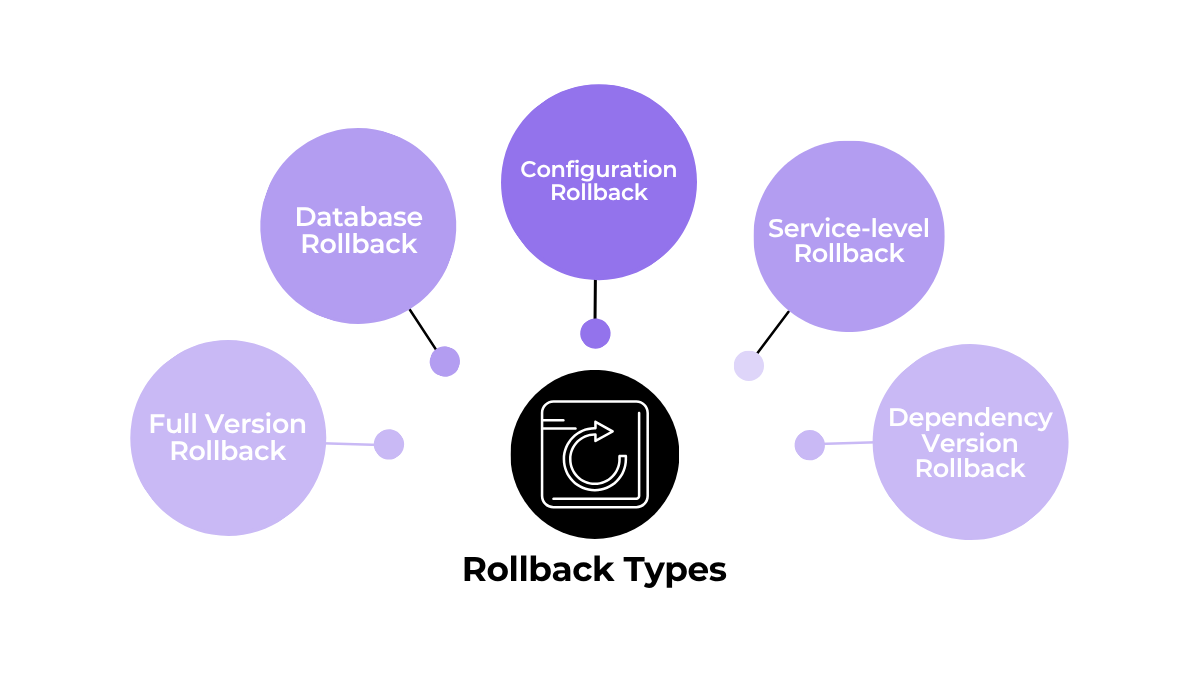
For example, your documentation should explain when a full version rollback is appropriate, such as when a new release causes widespread critical crashes.
You would contrast this with a simple configuration rollback, which might be used just to disable a new feature flag that is causing unexpected user confusion.
For each of these different procedures, you need to keep proper documentation.
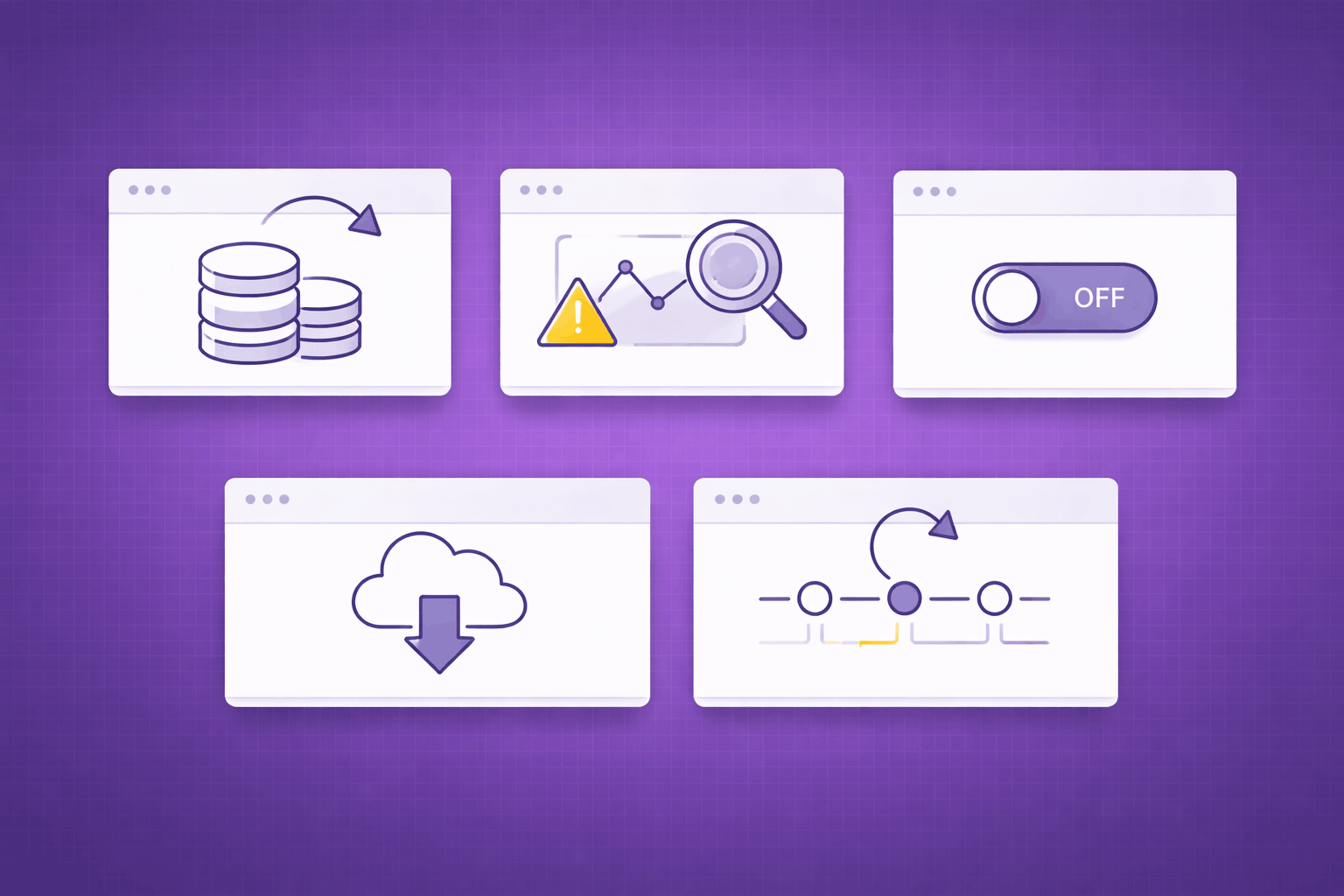
Take a look at some key elements of these documents in the image below.
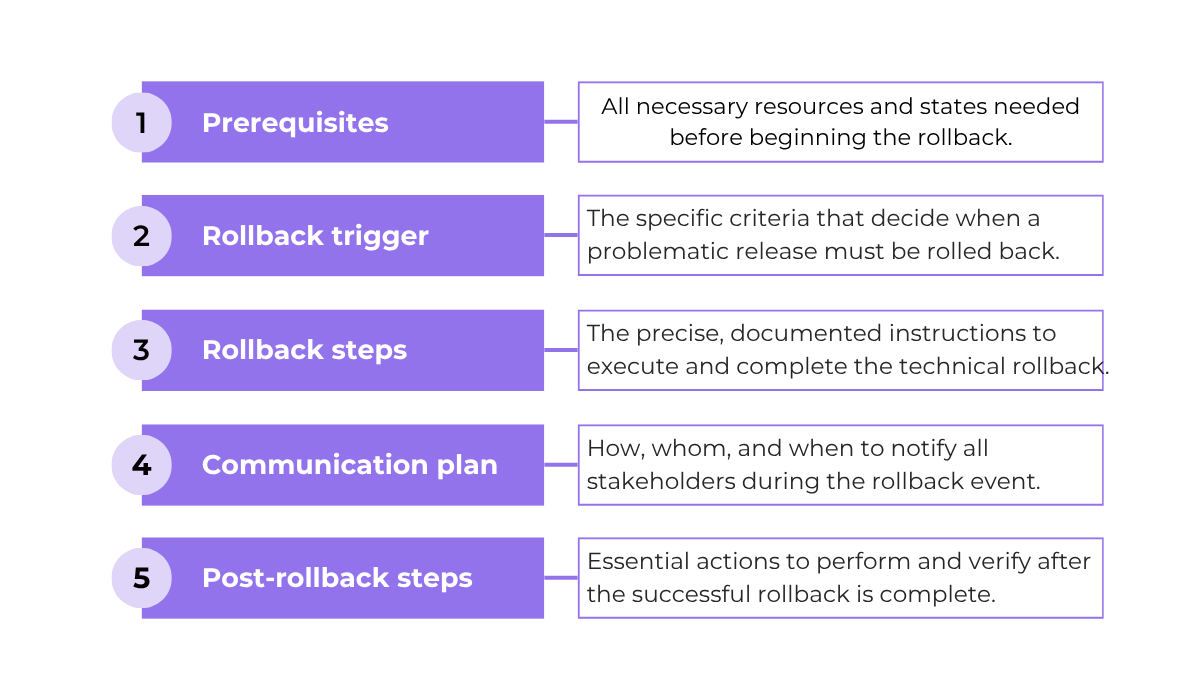
Typically, this documentation should be short, clear, and give teams precise instructions on when and how to reverse a release.
A key element is defining the prerequisites and triggers for the rollback, like what specific metric or event must occur.
And of course, the documentation must list the exact steps of the process itself.
Other than that, you want a clear communication plan and to define who needs to be notified during the rollback.
Finally, it should include post-rollback steps for monitoring and verification to confirm the app is stable.
In short, good documentation is a vital plan that ensures your rollback is a predictable, calm procedure, not a chaotic reaction to an issue.
A rollback, especially a full one, is done rarely and only when something has gone really wrong.
Because this is a major intervention, we need to be very careful to monitor the rollback process itself and, just as importantly, what comes after it.
This is called post-rollback monitoring.
One important thing to track is general data about your rollback processes.
This can be the speed at which a rollback is successfully completed, or another important one, the deployment rollback rate.
This metric is the percentage of your new deployments that have to be rolled back.
The image below shows some important benchmarks for this rate.
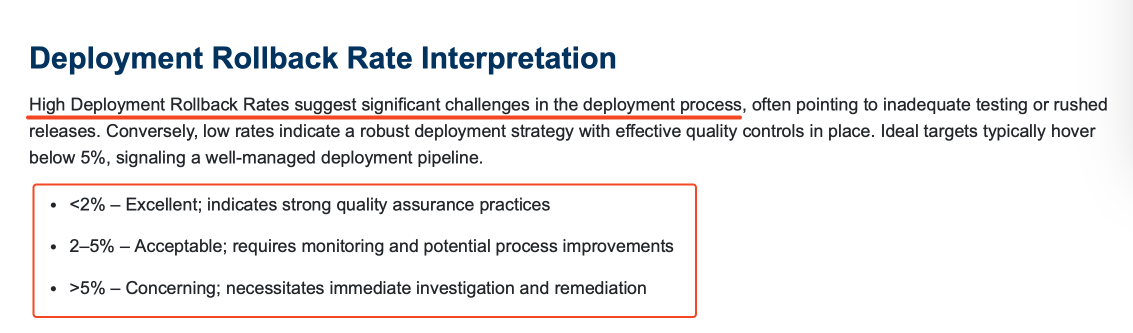
Keeping this rate low, or under 2%, is a sign of a healthy testing and release process.
If this number starts to increase, it points to deeper issues, perhaps in your QA or pre-production testing.
Beyond this high-level data, teams must closely monitor core app KPIs immediately after the rollback is finished.
These can include performance metrics such as:
Good performance in these areas after a rollback means the application has successfully returned to its stable state.
Plus, this monitoring is also useful when you consider industry benchmarks, like Google Play’s “Bad Behavior Threshold,” a limit set by Google on key metrics that affects app visibility in the store.
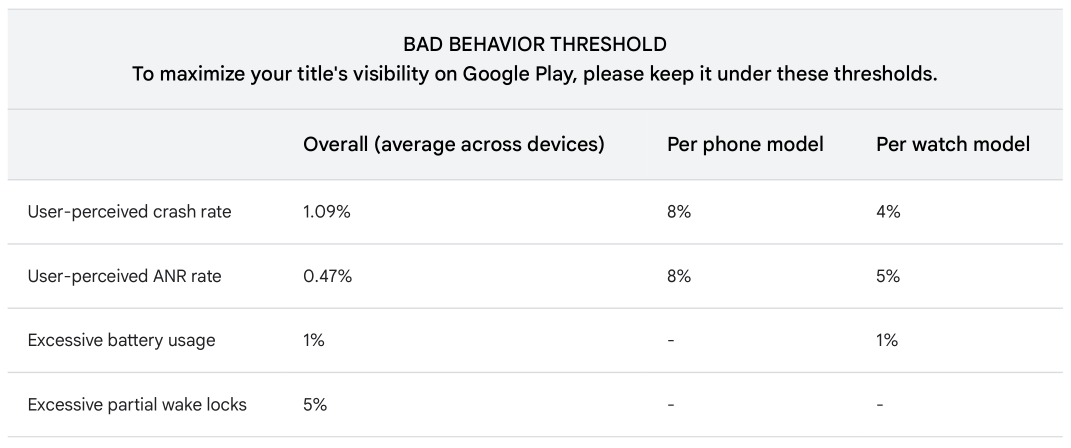
A bad release could easily push you over this threshold and affect the overall success of your app.
And post-rollback monitoring is the only way to confirm that your app is once again “behaving” well and is no longer at risk.
Of course, for tracking all these metrics, utilizing monitoring tools is always a good idea.
For example, a tool like Prometheus is excellent for this.
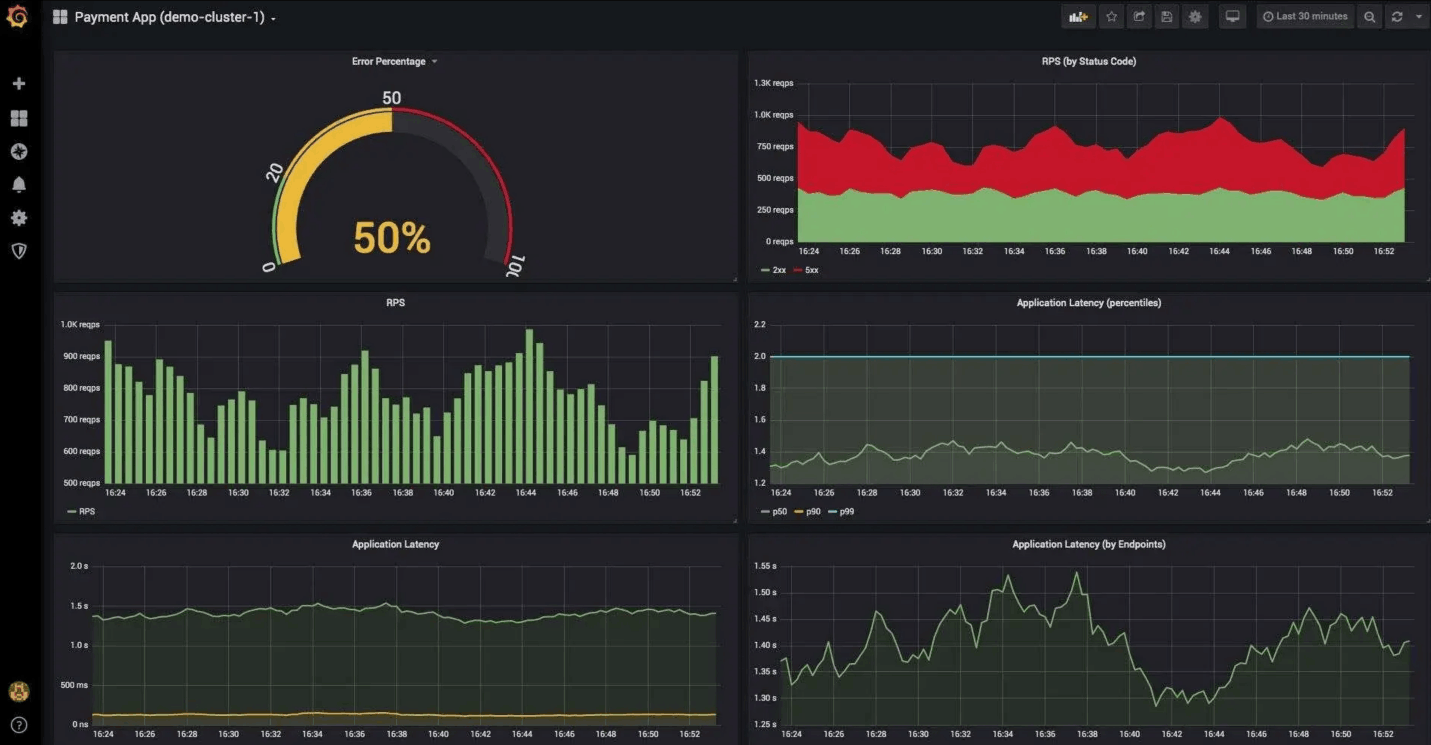
Tools like Prometheus can collect and display time-series data, so your team can watch in real-time as error rates and response times return to normal levels after the rollback.
To summarize, monitoring is the final, critical step that verifies your rollback was successful and that any major issues are truly over.
That wraps up our guide on the five best practices for app rollbacks.
We covered the importance of automation, setting up a solid process for testing your rollback procedure, and the critical need for clear documentation and post-rollback monitoring.
We hope you now have a clearer path to creating a stable and reliable deployment strategy.
By implementing these practices, you can ensure that an occasional bad release never turns into a catastrophic failure.
From internal bug reporting to production and customer support, our all-in-one SDK gets you all the right clues to fix issues in your mobile app and website.
We love to think it makes CTOs life easier, QA tester’s reports better and dev’s coding faster. If you agree that user feedback is key – Shake is your door lock.
Read more about us here.

Add to app in minutes

Doesn’t affect app speed

GDPR & CCPA compliant

Unexpected things pop up
Just like bugs in your app or web 🐛 Fix them now with just one reporting tool.